



So, you have a new Mac. Congratulations! Are you kind of lost? These 9 tips should help get on your way and increase your productivity.
1 – A Better Way to Click
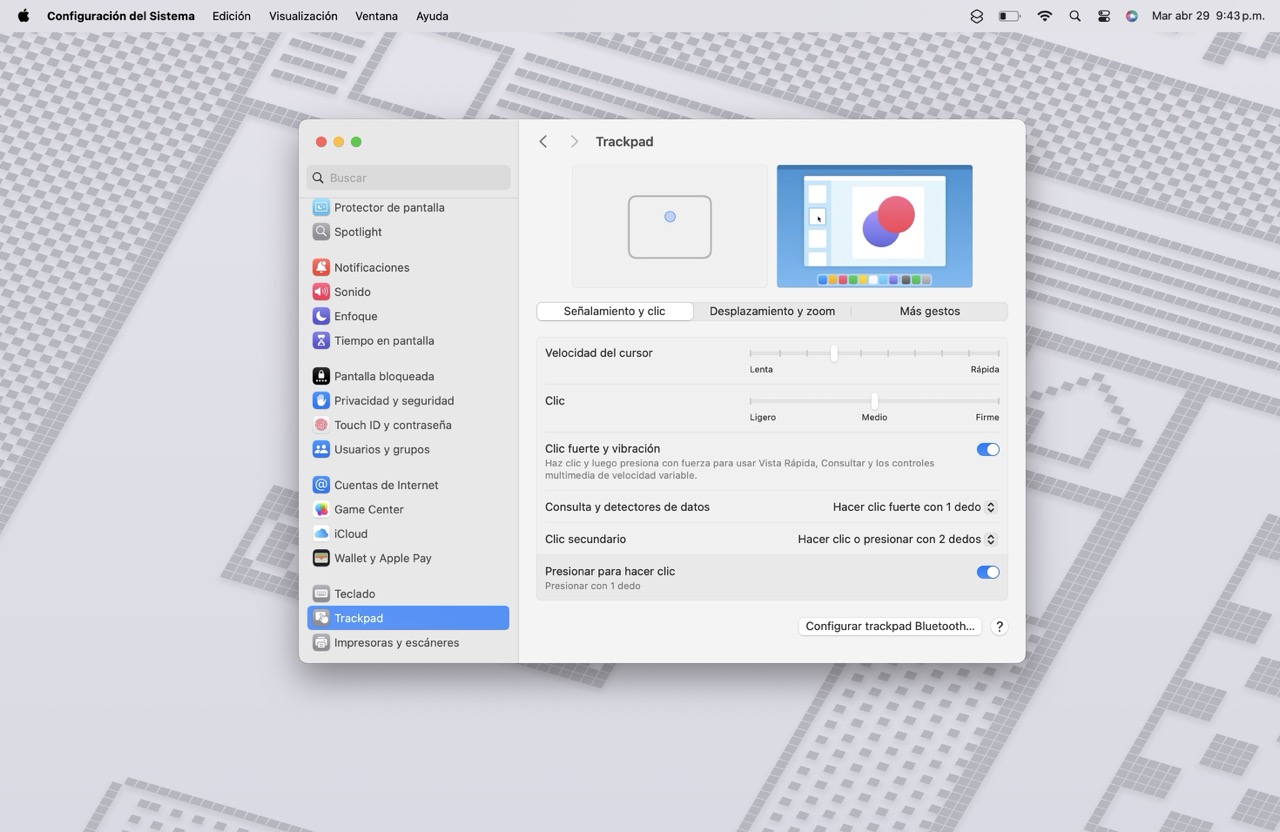
I have never understood why these first 2 options are not on by default because they totally supercharge the experience, so here we go. Open System Configurations > Trackpad:
- Turn on Tap to Click
- Turn on Secondary Click
With the former, you no longer need to hard press the trackpad to click; just touch it and that’s it. And with the second, WOW!, an infinite number of possibilities are opened up by being able to invoke the secondary menu of icons, applications and functionalities by pressing with 2 fingers.
2 – Make the Most of your Trackpad
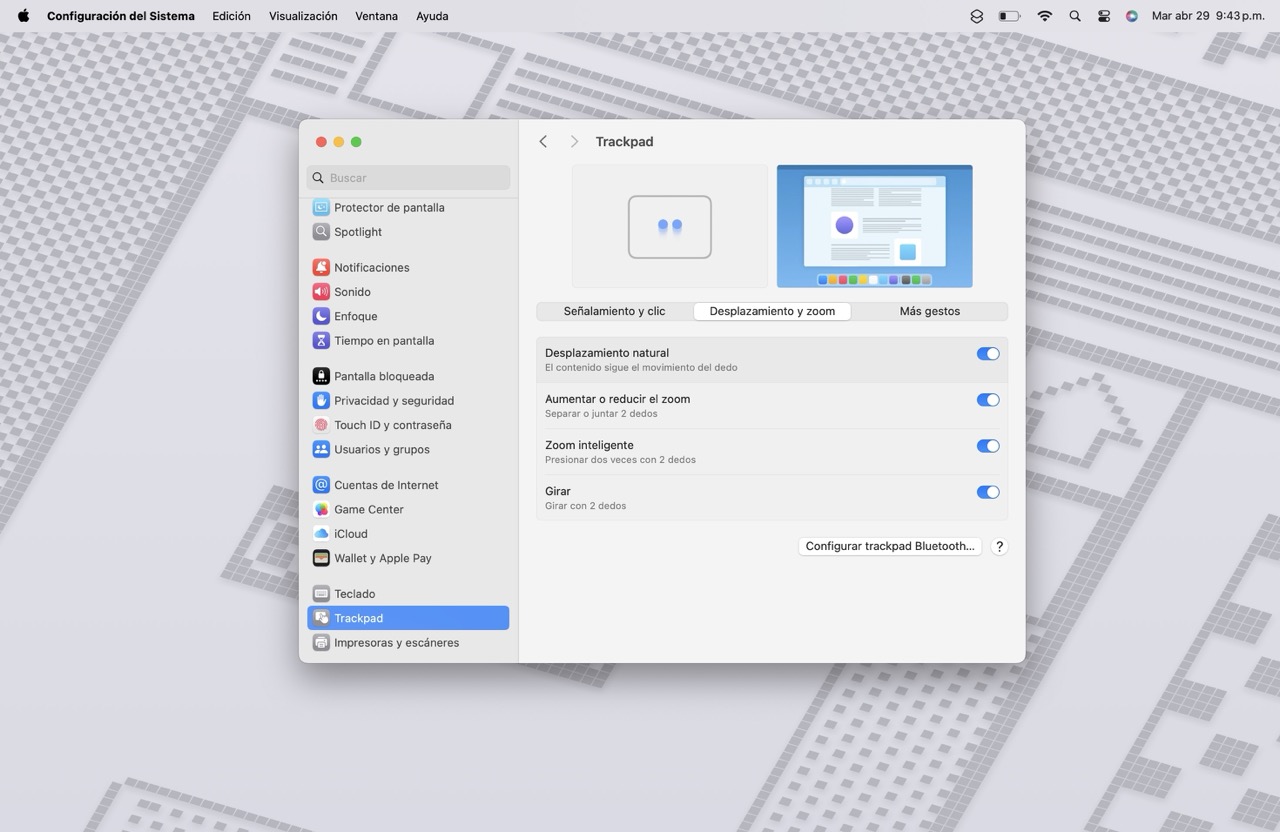
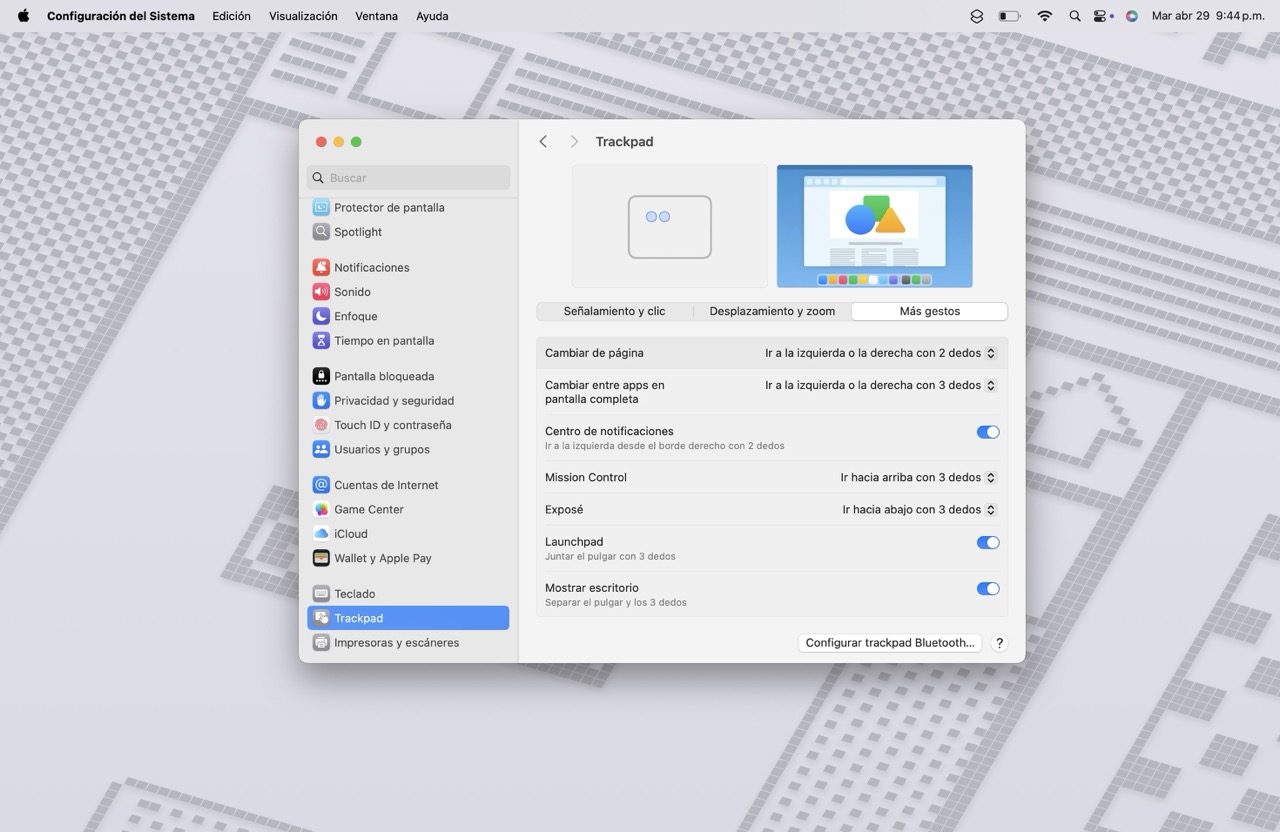
Since you are already there, turn on all of the options the Trackpad offers. Check them out, they are super powerful and allow to control your Mac easily with different types of swipes.
3 – The Dock: Alive and out of the way
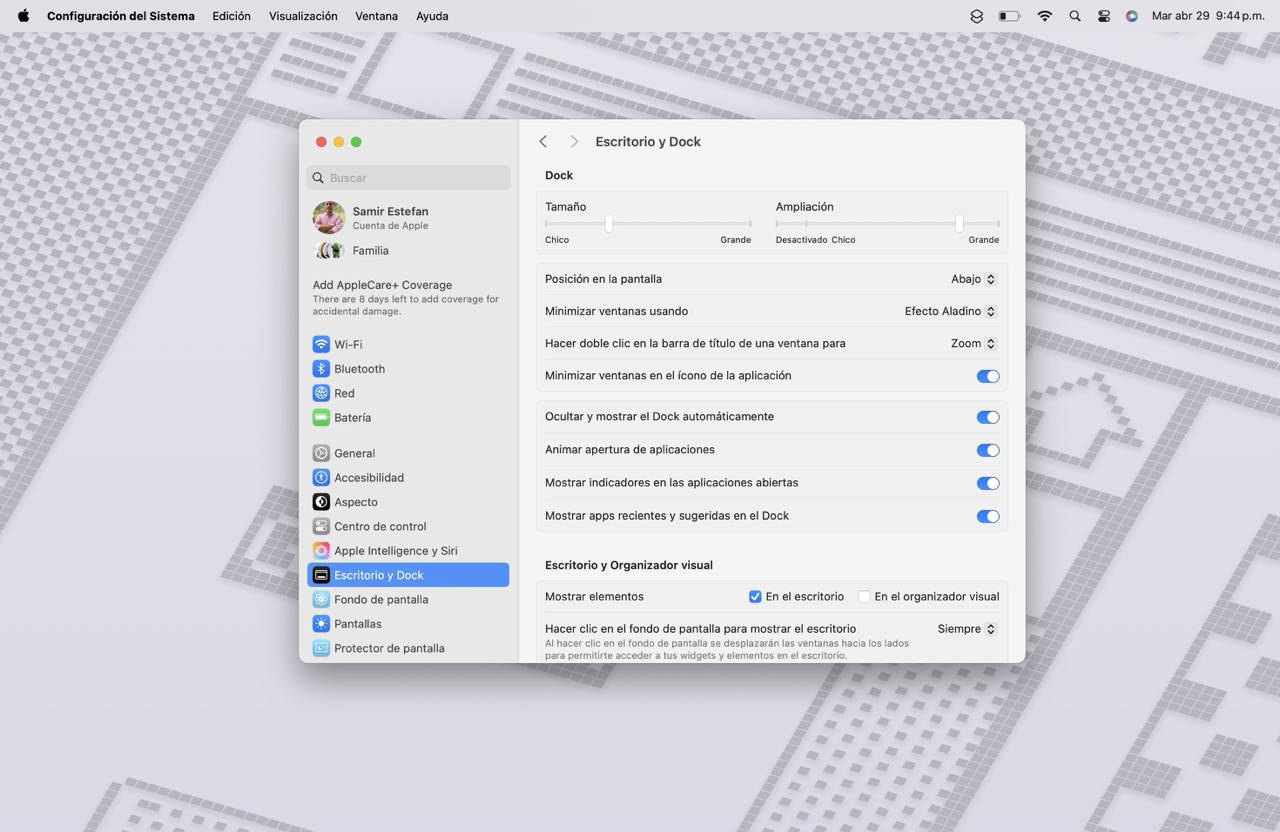
I love the Dock. It’s the most identifiable characteristic of macOS. However, most of the people don’t know how versatile it is.
Go to System Configurations > Desktop and Dock.
- Turn on Magnification. It will allow to you, clearly, which app you are about to click.
- Now select “Automatically hide and show the dock”. There you go, you just gained the bottom part of your desktop.
4 – iCloud
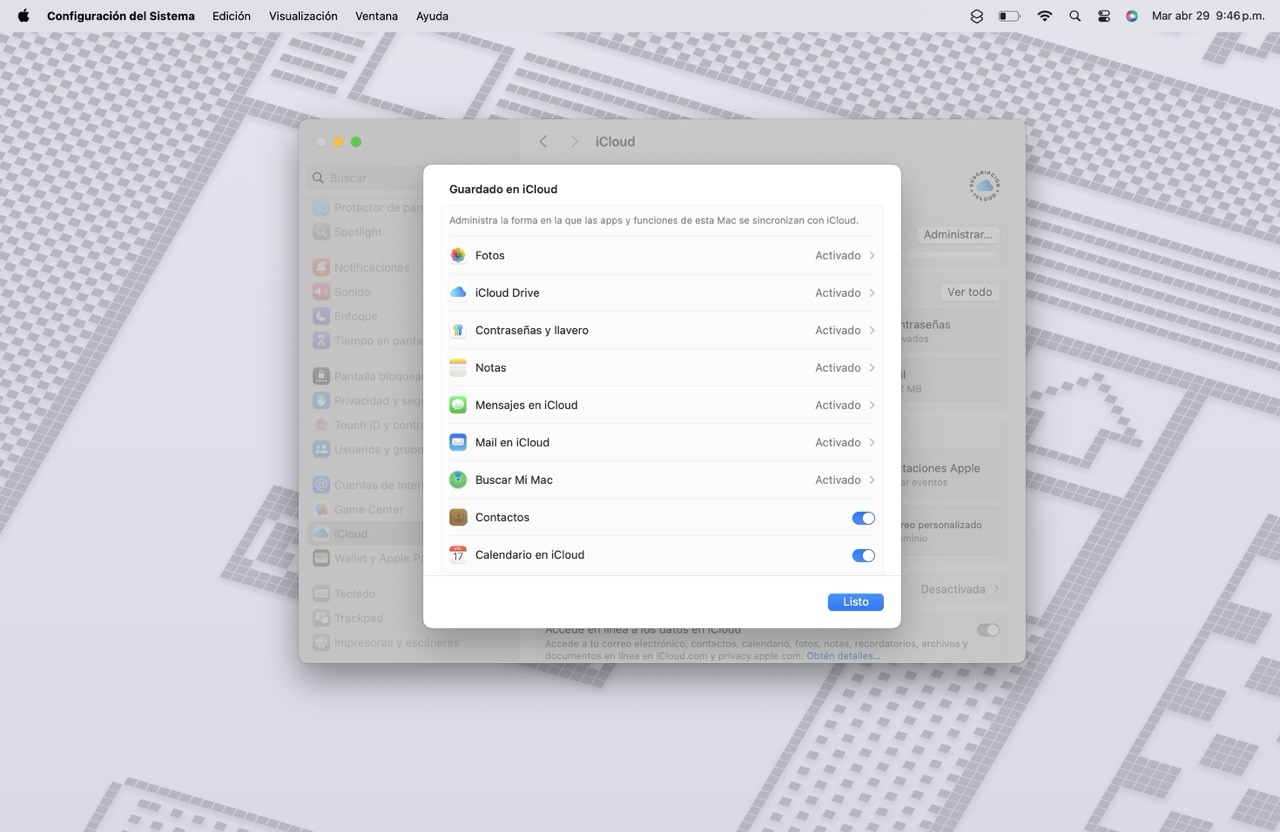
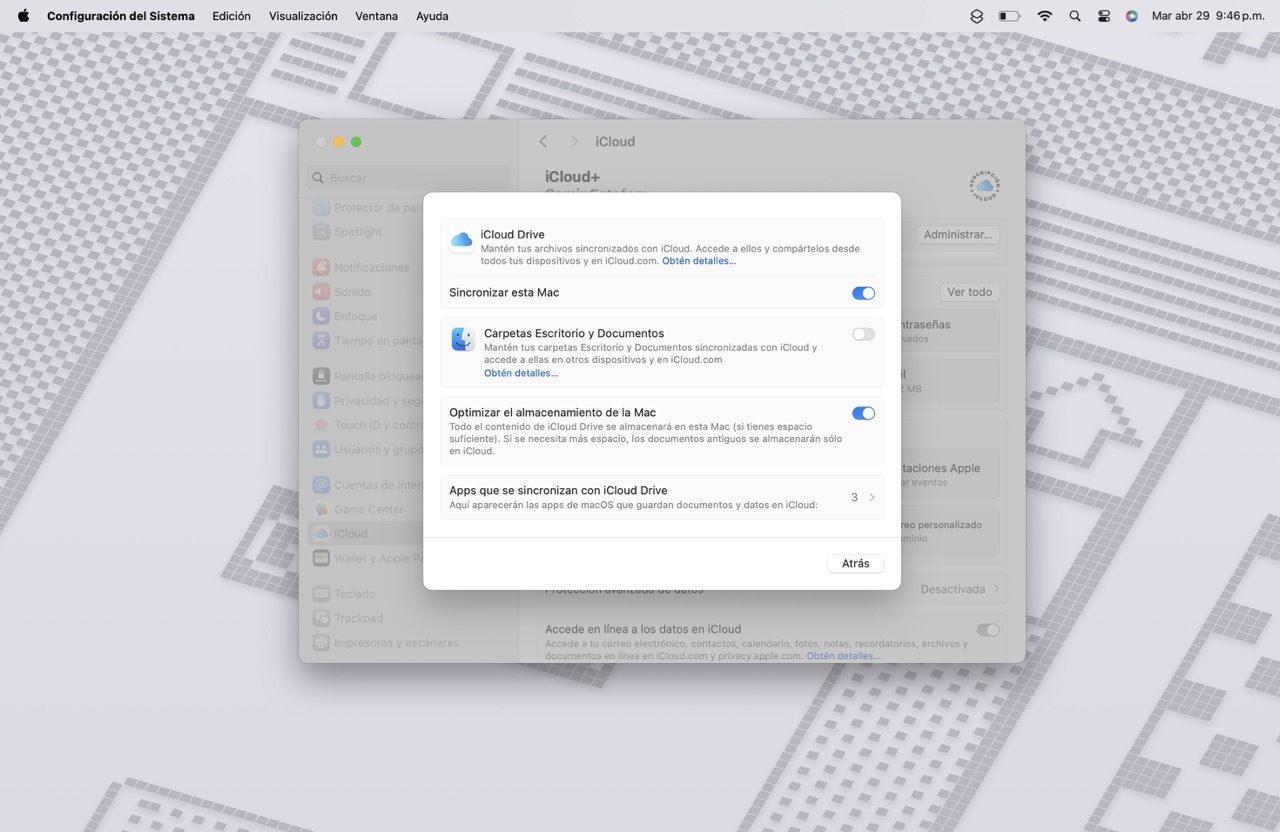
iCloud should be the center of how you manage your information, photos, documents, passwords, signatures if you want to take advantage of Apple’s Ecosystem. By using iCloud to store your information you can access it on your iPhone, iPad, Mac and even from a Windows device using icloud.com.
Go to Open System Configurations > iCloud and make sure the options for Folders, Desktop, and Documents are on. In fact, I would recommend turning all of the options on.
5 – Mac + Apple Watch = 👍🏻
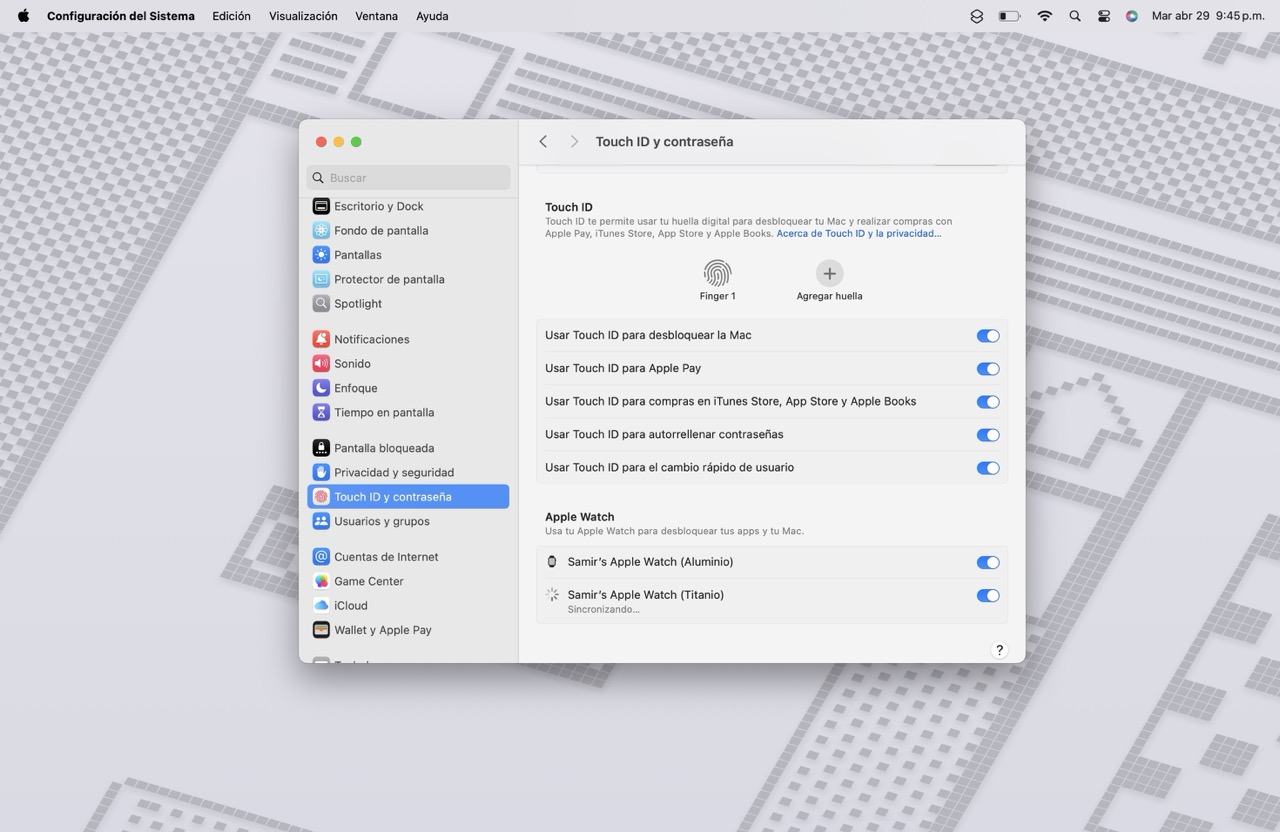
Continuity offers a ton of functionalities, such as being able to copy on one device and pasting on another, or seeing an email you started to compose on your phone on your Mac. But, did you know you can unlock your Mac by just approaching it? You just need to use your unlocked Apple Watch.
To set it up, go to Open System Configurations > Touch ID and Password and turn the option on.
6 – Multiple Desktops
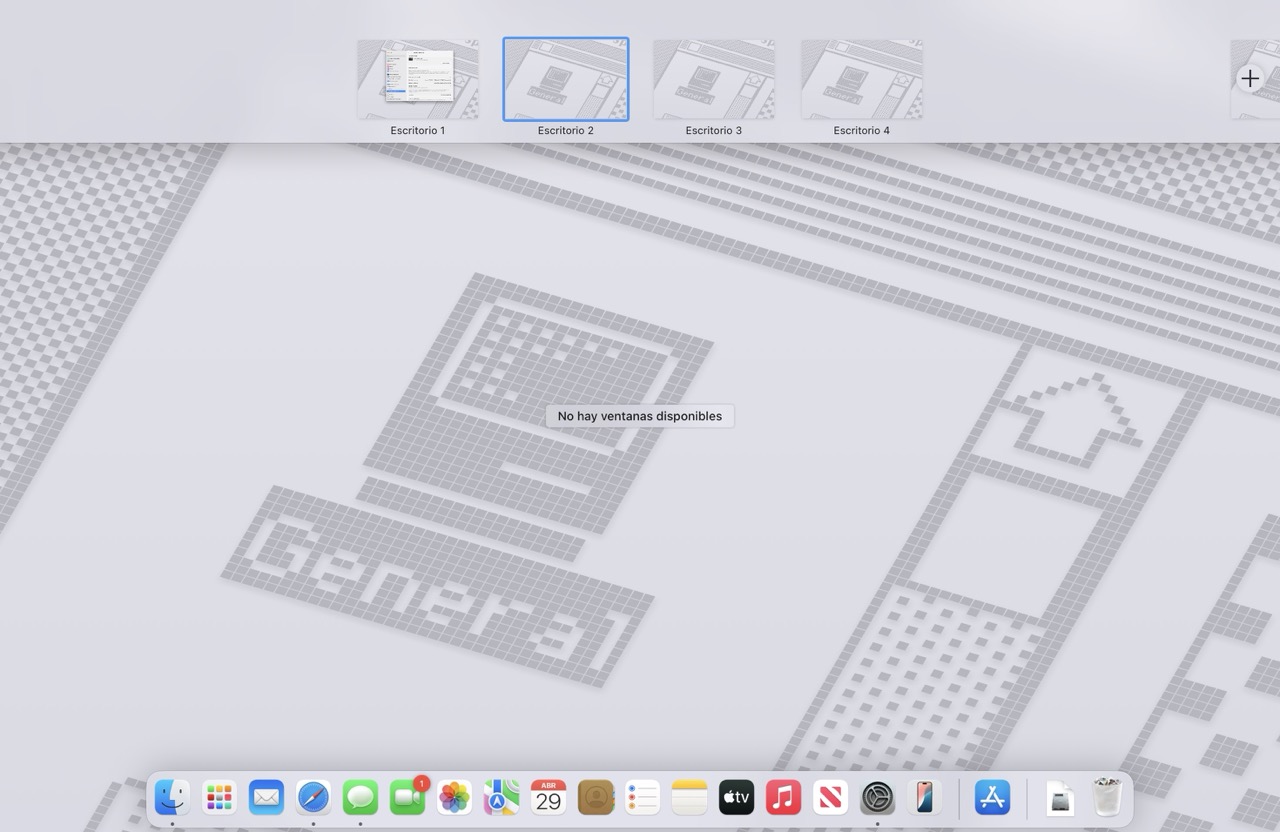
This is game changer, specially for your productivity. Why settle for 1 screen, where you have to cramp every application of you use, when you can have as many desktops as you want and even assign applications to each of them.
- In the first one I usually hace Mail and Safari
- In the second, Calendar
- In the third one, Messages + WhatsApp
- The fourth one is reserved for Pages, Numbers or Keynote
- In the fifth one, Notes and Reminders
- And in the sixth one Apple Music
And, if you followed the instructions of how to use the Trackpad, you will find how easy it is to move between desktops.
Where do you find it? Swipe with 4 fingers up.
7 – A Super Organized, Pristine Desktop
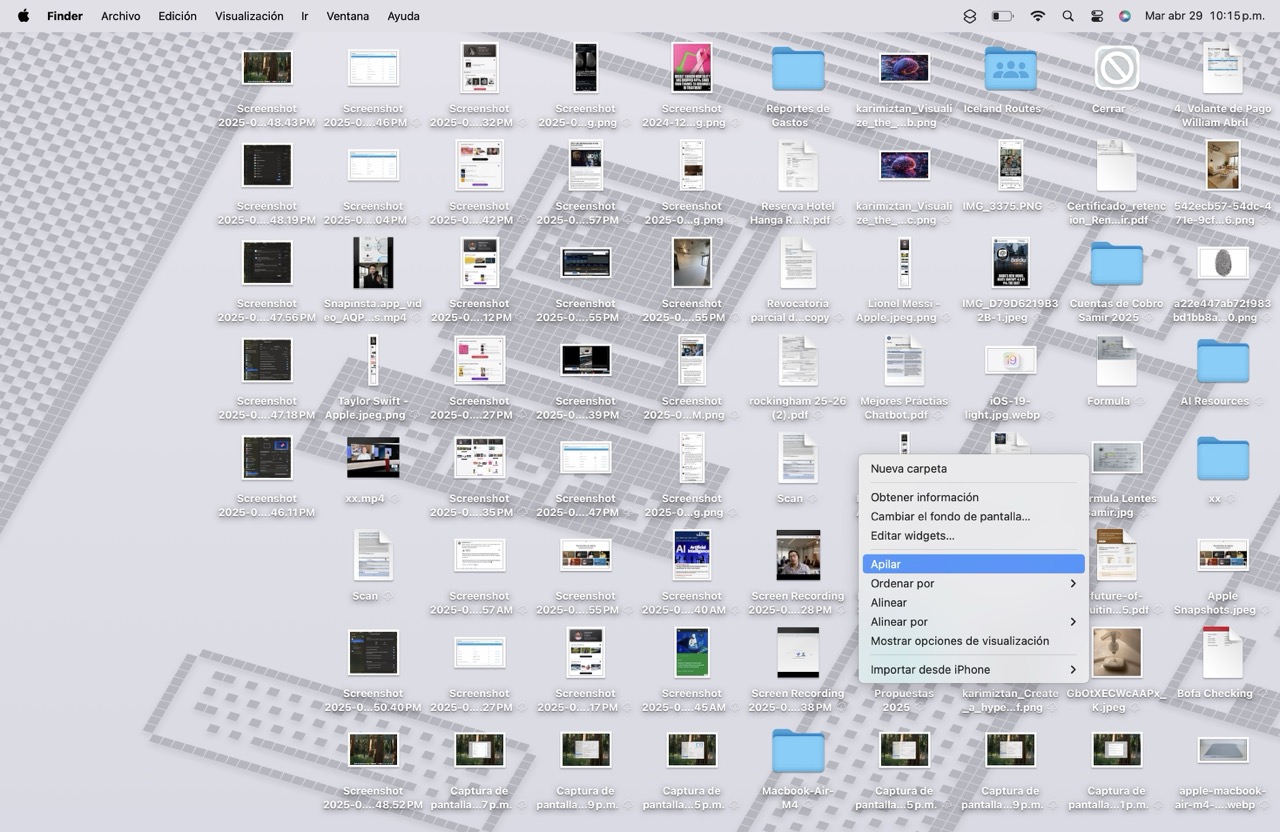
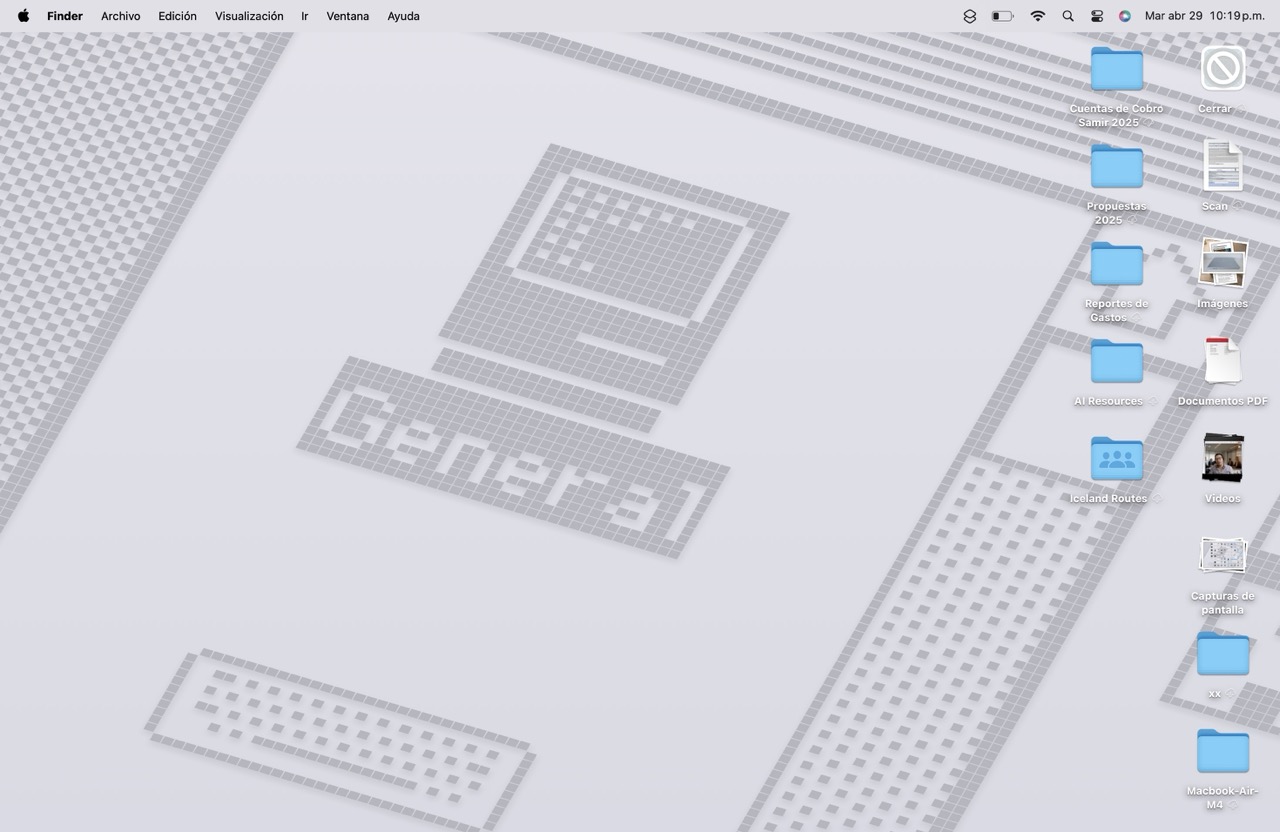
Speaking about the Desktop, I like to keep it organized and macOS makes it super easy to do so. It’s called Stacks and to activate it you just have to click with both fingers on the desktop and activate it.
8 – Apple Pay

I don’t know how many transactions you make in a week from your Mac. Me, a lot. And there’s nothing more archaic than seeing people having to go and get their credit card to complete an online purchase. That’s what Apple Play is for! So activate your card in Apple Pay. That way, you don’t have to worry about what the number, the expiration date, the CVV code is. The only thing you need is your fingerprint or your Apple Watch to authorize the transaction.
To activate it, go to System Configurations > Apple Pay
9 – Apple Intelligence
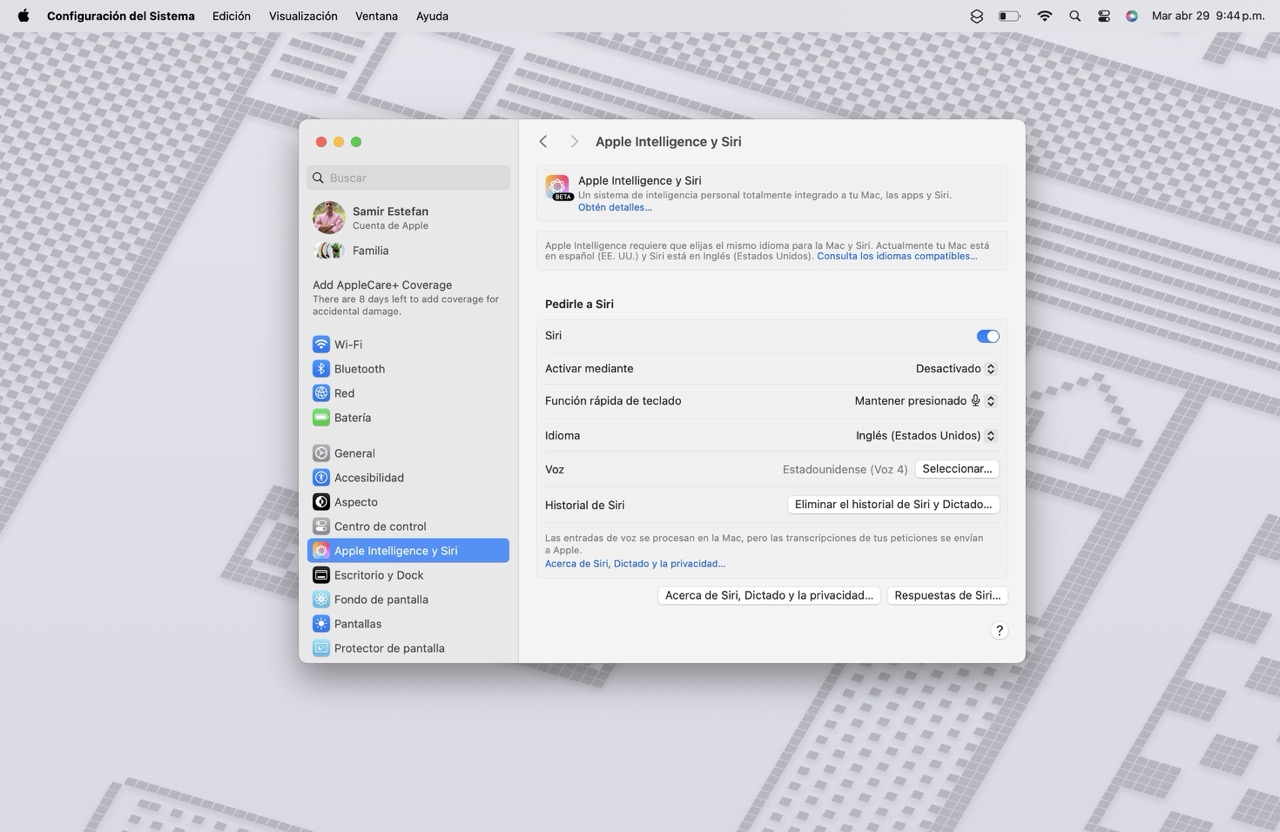
Yes, I know. There is a whole debate around Apple Intelligence but the truth is that the bulk of the features that Apple has already released work better on the Mac than on other devices. Features like writing tools, priority notifications, email summaries, Image Playground, smart photo and video search, and ChatGPT integration are great on the Mac. That’s why, since its launch last year (and since its arrival in Spanish a few weeks ago) I recommend activating Apple Intelligence on the Mac.
There you go! 9 tips to supercharge your Mac experience. I hope you find them useful